
To join Google Meet with a code, open Google Meet, paste the meeting code, check your mic and camera, then click Join or Ask to join.
Table of contents
- Key takeaways
- The fastest way to join Google Meet with a code
- Quick steps to join with a code
- Quick answer: where to enter the Google Meet code
- When you'll have to wait for the host
- What is a Google Meet code, and where to find it
- What is a Google Meet code?
- What does a Google Meet code look like?
- How to extract the code from a meeting link
- Joining by code vs joining by link — what's the difference
- How to join Google Meet with a code on mobile
- Join via the Google Meet app on Android and iPhone
- Join Google Meet with a code via Gmail
- How to enter a Google Meet code when you don't have a link
- Pre-flight checklist for mobile
- Quick checks before tapping Join on mobile
- How to join Google Meet with a code on desktop
- Join via a web browser
- Do you need to install an app on desktop?
- Check your mic and camera before joining
- Is joining by code different from clicking the link?
- Meeting code expiration — when codes stop working
- Expiration by code source (official Google rules)
- Common mistakes when entering a Google Meet code
- Do you need to type the hyphens?
- Is the code case-sensitive?
- Do you need to sign in?
- Why do I still wait when I have the code?
- Common typing mistakes
- Can't join Google Meet with a code? Try these fixes
- Quick troubleshooting checklist
- Wrong code entered
- Expired code or meeting already ended
- Can't find the Join with a code button
- Wrong account signed in
- Waiting too long for approval
- Mic or camera not working
- Weak network blocking entry
- Tips to join Google Meet with a code faster and with fewer errors
- Copy-paste instead of typing
- Join 5 minutes early to test mic and camera
- Save the link or code in a note
- Keep your browser and app updated
- After you join — useful next steps
- Frequently Asked Questions
- Where do I enter the Google Meet code?
- Can I join Google Meet with just a code (no link)?
- Is the Google Meet code case-sensitive?
- Can I join Google Meet with a code on iPhone and Android?
- Can I join from a computer without installing the app?Yes. In most cases, opening a browser and going to meet.google.com is all you need.Why can't I join even though my code is correct?
- How long do Google Meet codes stay valid?
This guide walks through the exact steps on mobile, desktop, and Gmail, how to extract the code from a meeting link, and how to fix the most common issue — "I typed the code correctly but still can't get in".
Key takeaways
You can join Google Meet with a code on both mobile and desktop in just a few short steps.
The meeting code is the part that identifies a specific meeting room — it's usually the last segment of the meeting link.
On mobile, you can enter the code via the Google Meet app or directly inside Gmail.
On desktop, just go to meet.google.com — no extra app required.
Meeting codes are 10 characters and are not case-sensitive — typing
ABC-DEFG-HIJorabcdefghijworks the same.If you have a code but still can't get in, the cause is usually the wrong Google account, an expired code, or the host hasn't admitted you.
The lowest-error way is to copy and paste the code rather than typing each character manually.
Different code sources expire on different rules — Calendar codes can stay valid for years, but breakout-room and hardware-room codes expire instantly.
The fastest way to join Google Meet with a code
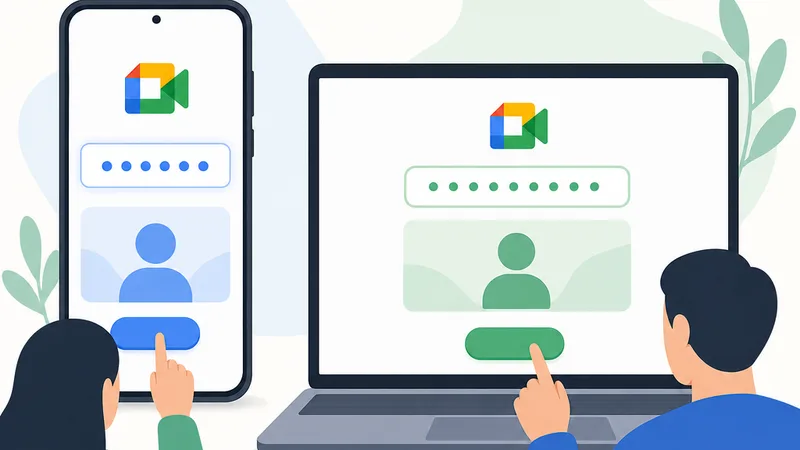
Open Meet, paste the code, check mic/camera, and send the join request. The flow is nearly identical on mobile and desktop.
Important caveat: having the code doesn't guarantee instant entry. In many cases you'll still need to wait for the host to admit you.
Quick steps to join with a code
Open Google Meet or go to meet.google.com.
Click Join with a code or use the Enter a code or link field.
Type or paste the meeting code, then click Join.
Check your microphone and camera in the preview.
If you see Ask to join, click it and wait.
Once the host admits you, you're in.
Field-tested tip: I always recommend copy-paste over manual typing. It's the single fastest way to cut typo errors.
Quick answer: where to enter the Google Meet code
Enter the meeting code on the Google Meet home screen of the app or web.
Mobile: Open the Meet app or Gmail → tap Join with a code.
Desktop: Go to meet.google.com → enter the code in the field at the top.
If you already have a meeting link, just click it — you don't need to enter the code manually.
When you'll have to wait for the host
You'll typically have to wait for the host to admit you when:
You're on an account outside the host's organization (a different company or school).
You're not signed in with the Google account that was actually invited.
The host has turned on stricter participant controls.
If the wait is dragging on, the fastest move is to message the host directly rather than sit and refresh.
What is a Google Meet code, and where to find it
What is a Google Meet code?
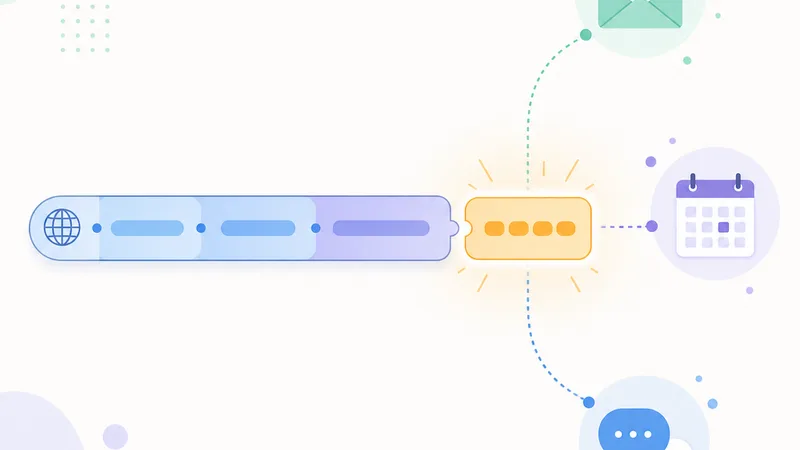
A Google Meet code is the identifier for a specific online meeting room. Think of it as the meeting's address.
What does a Google Meet code look like?
The code is a 10-character string in this format:
abc-defg-hij(with hyphens — the way Google displays it)abcdefghij(without hyphens — also works)Codes are not case-sensitive —
ABC-DEFG-HIJandabc-defg-hijare treated identically by Google Meet.The hyphens are visual separators only; the system accepts the code with or without them.
How to extract the code from a meeting link
If you receive a link like:
https://meet.google.com/abc-defg-hij
Then the part after the final / is the meeting code: abc-defg-hij
You'll typically receive a link or code from:
Gmail
Internal chat apps (Slack, Teams, etc.)
Google Calendar invitations
Direct messages from teachers, colleagues, or the host
Simple trick: if you only need the code, copy the last segment of the link to avoid mistakes.
Joining by code vs joining by link — what's the difference
Method | Pros | When to use |
|---|---|---|
Join by link | Faster, fewer chances to mistype | When you've been sent the direct link |
Join by code | Flexible — works when only the code was shared | When email or chat only includes the code |
Bottom line | Same destination, same room | Prefer the link if you have it; type the code if you don't |
Don't try to guess codes or hand-edit the link. Only use the exact info the organizer sent.
How to join Google Meet with a code on mobile
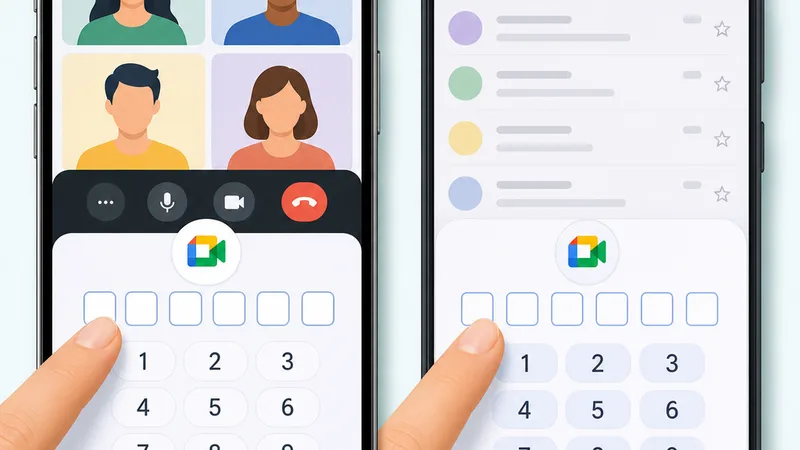
Join via the Google Meet app on Android and iPhone
iPhone and Android share a nearly identical flow. Steps:
If you don't have the app, download Google Meet from Google Play or the App Store.
Open the Meet app.
Sign in with the correct Google account.
Tap Join with a code.
Type or paste the meeting code.
Tap Join.
Check mic and camera on the preview screen.
If prompted, tap Ask to join and wait for the host to admit you.
If you're joining a work or school meeting, double-check you're signed in with your organization's email. This is the single most common mistake I see from new users.
Join Google Meet with a code via Gmail
Many phones let you join Meet straight from Gmail:
Open the Gmail app.
Tap the Meet tab at the bottom.
Tap Join a meeting.
Enter the meeting code.
Tap Join and wait for approval if needed.
If you don't see the Meet tab, update Gmail. If it still doesn't appear, switch to the dedicated Google Meet app instead.
How to enter a Google Meet code when you don't have a link
This is a very common scenario. You don't need a link — the code is enough.
Open Meet or Gmail.
Tap Join with a code.
Paste the meeting code into the input field.
Tap Join.
You can pull the code from email, chat, a calendar invite, or any other message from the host. Always prefer copy-paste over typing.
Pre-flight checklist for mobile
Working Google account.
Meet app or Gmail installed.
Stable internet connection.
Mic and camera permissions granted.
Battery charged if it's a long call.
Headphones if you're in a noisy place.
Quick checks before tapping Join on mobile
Mute your mic if joining a class or large meeting.
On a weak network, turn off the camera to make joining easier.
Verify your display name before joining.
Use your organization account for work or school calls.
Join 3–5 minutes early to test audio.
Real-world note: most join issues aren't with the code itself — they happen when people join at the last second and only then discover their mic isn't working or they're signed in to the wrong account.
How to join Google Meet with a code on desktop
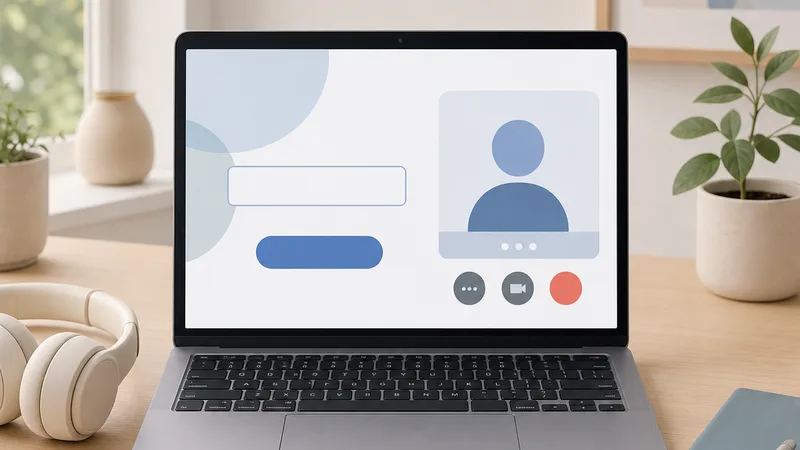
Join via a web browser
On desktop you usually don't need any app. A modern browser like Chrome or Edge is enough.
Steps:
Open your web browser.
Go to meet.google.com.
Sign in to your Google account if prompted.
Type or paste the meeting code into the field on the home page.
Click Join.
Check mic and camera in the preview.
Click Ask to join if the room requires host approval.
If the browser asks for mic/camera permission, click Allow. Denying at this step means you may not be able to use mic or camera even after joining.
Do you need to install an app on desktop?
Usually no. Chrome or Edge is enough for joining Google Meet quickly without any additional software.
Check your mic and camera before joining
Quick checks before clicking Join:
Confirm the browser has mic and camera permissions.
Pick the right input device if you have multiple mics or webcams.
Say a few words to test mic input levels.
Watch the preview to verify image quality.
On a weak network, turn off the camera before joining.
Is joining by code different from clicking the link?
Same: both take you into the same room.
Different: the link is faster (no manual typing); the code is handy when only the code was shared.
If you have a link, use it. If you only have the code, type the code.
Meeting code expiration — when codes stop working
A meeting code isn't always permanent. Knowing the expiration rules saves you the "I had the right code yesterday but it doesn't work today" situation.
Expiration by code source (official Google rules)
Code source | Expiration rule | Practical meaning |
|---|---|---|
Google Calendar event | Expires when 365 days of no use and not tied to a future event | Recurring calendar codes can stay valid for years |
Chat, Classroom, Gmail, Meet homepage | Expires 365 days after last use | Each use resets the 365-day clock |
Breakout rooms | Expires instantly when the main meeting ends | One-time use only |
Meeting room hardware | Expires instantly when all users leave | Hardware codes don't persist past the call |
Workspace nicknames | Expires instantly when all users leave | Nickname rooms are session-only |
Third-party app (Outlook, etc.) | 365 days after last use (rolling) | Each use refreshes another 365 days |
If you suspect the code is expired, ask the host for a fresh one — they'll usually be regenerating from Google Calendar anyway.
Common mistakes when entering a Google Meet code
Do you need to type the hyphens?
No. Google Meet accepts the code with or without hyphens — both abc-defg-hij and abcdefghij work.
The safest approach is to paste exactly what was sent, so you avoid missed characters or formatting drift.
Is the code case-sensitive?
No. Meeting codes are not case-sensitive. ABC-DEFG-HIJ and abc-defg-hij are treated the same. Don't waste time fixing capitalization.
Do you need to sign in?
Many meetings require sign-in for security and host control over participants.
Specifically for work or school meetings:
You usually need your organization account.
Using a personal Gmail may force a long wait for approval or block entry entirely.
Why do I still wait when I have the code?
Having a code doesn't mean instant entry. You may still wait because:
The host enabled participant-control settings.
You're on an account outside the invite list.
The meeting's organization has strict security policies.
If the wait is too long, double-check the meeting start time, then message the host.
Common typing mistakes
Missing characters: typing too fast and dropping a letter.
Reusing an old code: grabbing yesterday's code by accident.
Extra whitespace: copying from email or chat brings in a trailing space.
Wrong account: signed in with a different email than the one invited.
Confused with another identifier: grabbing a class number, calendar ID, or unrelated string from the email body.
Can't join Google Meet with a code? Try these fixes
Most join issues come from a small handful of causes: wrong code, wrong account, expired code, or host hasn't admitted you. Work through them in order — it's faster than random retries.
Quick troubleshooting checklist
Check the meeting code character by character.
Make sure you're signed in to the correct Google account.
Re-open Meet, Gmail, or meet.google.com.
Verify the meeting hasn't already started or ended.
Check your network is stable.
If you're waiting, ping the host for confirmation.
Wrong code entered
The most common error. A single wrong character blocks entry.
Fix:
Compare each character to the original.
If you have the link, grab the suffix to compare.
Clear the input field and paste the code fresh.
Expired code or meeting already ended
You're sure you typed correctly but still can't get in. This usually happens when an older meeting code has expired, the host stopped using it, or the meeting was a breakout/instant room that expired the moment everyone left.
Fix: ask the organizer for a fresh code or new link. Also re-check the meeting time so you're not joining the wrong slot.
Can't find the Join with a code button
Usually because of an outdated UI or an old app version.
Try:
Update Google Meet or Gmail to the latest version.
Go directly to meet.google.com in a browser.
Confirm you're opening Google's app, not a different meeting tool.
Wrong account signed in
Extremely common with work and school meetings.
Three steps:
Sign out of your current account if needed.
Sign back in with the email that was actually invited.
Re-open the code or link and try joining again.
If the organization uses a custom email domain, only that account has the right to join.
Waiting too long for approval
Often the host hasn't seen the notification or hasn't started the meeting.
Try:
Message the host directly.
Leave and rejoin once.
Re-verify the code and the meeting time.
If the host hasn't started yet, waiting is the only option.
Mic or camera not working
Simple order of operations:
Check the app/browser has mic and camera permissions.
Pick the right input device if you have multiple mics or webcams.
Close other apps using the camera.
Restart Meet or the browser.
If you need to join urgently, turn off the camera first and fix it inside the meeting.
Weak network blocking entry
Signs: the loading screen spins for a long time, the preview won't load, or you keep getting kicked out.
Fix:
Switch to a more stable Wi-Fi or use 4G/5G.
Close background apps.
Turn off the camera before joining.
If the app is slow, try the web. If the web is slow, try the app.
Tips to join Google Meet with a code faster and with fewer errors
Copy-paste instead of typing
Copy-paste cuts typing errors, lets you join faster, and prevents grabbing the wrong code by accident.
Join 5 minutes early to test mic and camera
Especially useful for online classes, interviews, and important work meetings. You have time to fix issues before the meeting actually starts.
Save the link or code in a note
If you join the same meeting often, save the code or link in your notes app, Gmail, or Google Calendar for quick access later.
Keep your browser and app updated
Newer versions are more stable and avoid UI bugs. A lot of "missing button" or "can't join" issues are simply caused by outdated apps.
After you join — useful next steps
Once you're in the meeting, you might also want:
To share your screen on Google Meet for slides or demos.
To turn on Google Meet captions for real-time subtitles.
To record the meeting for absentees.
To get a transcript of what was said.
To use an AI meeting note taker for automatic summaries.
If you're new to Google Meet, start with what is Google Meet for the basics.
Frequently Asked Questions
Where do I enter the Google Meet code?
On mobile, open the Meet app or Gmail and tap Join with a code. On desktop, go to meet.google.com and type the code into the field on the home page.
Can I join Google Meet with just a code (no link)?
Yes. Open Meet, Gmail, or meet.google.com, type or paste the meeting code, and tap Join. You don't need the full link.
Is the Google Meet code case-sensitive?
No. Codes are not case-sensitive. ABC-DEFG-HIJ and abc-defg-hij work the same. Hyphens are also optional — you can type the code with or without them.
Can I join Google Meet with a code on iPhone and Android?
Yes. Both iPhone and Android support code-based joining through the Meet app or inside Gmail.
Can I join from a computer without installing the app?Yes. In most cases, opening a browser and going to meet.google.com is all you need.
Why can't I join even though my code is correct?
Common causes:
Wrong Google account signed in.
Host hasn't admitted you yet.
The code has expired.
The meeting has already ended.
Quick fix: verify your account, double-check the meeting time, then message the host to confirm or get a new link.
How long do Google Meet codes stay valid?
It depends on where the code was created. Calendar-event codes stay valid as long as the event exists or until 365 days of no use. Codes from Gmail, Chat, Classroom, or the Meet homepage expire 365 days after last use. Breakout rooms, hardware-room codes, and Workspace nicknames expire instantly when everyone leaves.
To remember how to join Google Meet with a code, keep just two ideas in mind: if you have a link, click it; if you only have a code, open Meet, Gmail, or meet.google.com to enter the code. If you can't get in, verify the code, the Google account, and whether you're waiting on the host.
Bookmark this guide for those urgent moments — online meetings, virtual classes, or interviews. If it helped, share it with anyone who uses Google Meet regularly.