
Google Meet captions let you read what's being said in real time during an online call. If you're looking for the fastest way to turn on captions in Google Meet, this guide walks you through every action on a computer (with the C keyboard shortcut), Android, and iPhone, plus how to switch caption languages, enable translated captions, and fix common cases where captions don't show up. As of 2026, Google Meet supports live captions in 103 languages (most are still in beta), including English, Spanish, Vietnamese, Japanese, Korean, and Mandarin.
Table of contents
- Key takeaways
- How to turn on Google Meet captions — the fastest way
- What are Google Meet captions?
- Turn on captions in 60 seconds
- Standard captions vs translated captions: what's the difference?
- How to turn on captions on a computer
- Step-by-step on desktop
- Turn off captions on desktop
- How to switch captions to a specific language on desktop
- What to do when the UI changes
- How to turn on captions on Android and iPhone
- Step-by-step on Android and iPhone
- Turn off captions on mobile
- If you don't see Show captions on mobile
- Mobile caption tips
- How to change the caption language in Google Meet
- Change caption language on desktop
- How many languages does Google Meet caption?
- Change caption language on mobile
- When to switch caption language
- If captions are in the wrong language
- How to turn on translated captions in Google Meet
- Translated captions vs standard captions
- Step-by-step: enable translated captions
- Requirements for translated captions in 2026
- When to use translated captions — and when not to
- Google Meet captions not showing — what to check
- Quick check: 5 common causes
- You haven't joined the meeting view
- App or browser is out of date
- Your account doesn't have translated captions
- Language is unsupported or wrong
- Audio input is poor
- Tips to use Google Meet captions more effectively
- When to turn on captions
- How to use captions to follow content better
- Don't trust captions blindly
- Customize Google Meet captions
- What you can customize on desktop
- Customization options and when to use them
- When to tweak caption styling
- Are Google Meet captions right for you?
- Use standard captions if you...
- Use translated captions if you...
- Don't rely on captions alone if you...
- Frequently Asked Questions
- How do I turn on Google Meet captions on my phone?
- Where is the captions button on a computer?
- Does Google Meet support captions in my language?
- Why do I see captions but no option to translate them?
- What should I check first when Google Meet captions don't show?
- Can I turn captions off after enabling them?
- Can I change the size or color of Google Meet captions?
Key takeaways
You can turn on captions inside any meeting using the Turn on captions button or the More options (three dots) menu.
On a computer, the captions toggle usually sits on the bottom toolbar or in Settings → Captions.
On mobile, the standard path is to join the meeting, tap the three dots, then Show captions.
Standard captions transcribe speech into the same language; translated captions render the speech in a different target language.
To get accurate captions, set the caption language to match what the speaker is actually saying.
Translated captions are not free for everyone — since January 22, 2025, they require a Gemini for Google Workspace add-on (Gemini Enterprise, AI Meetings and Messaging, or Gemini Education).
If Google Meet won't show captions, recheck the meeting UI, update your app or browser, and verify the caption language setting.
Captions are great for noisy environments, language learning, accessibility, and following meetings in a second language.
You can turn captions off any time if they cover slides or distract you.
On desktop, you can also customize the caption font, size, and color for easier reading.
Captions are only visible to you — turning them on doesn't show captions to other meeting participants, and they don't get saved in the meeting recording or transcript.
How to turn on Google Meet captions — the fastest way
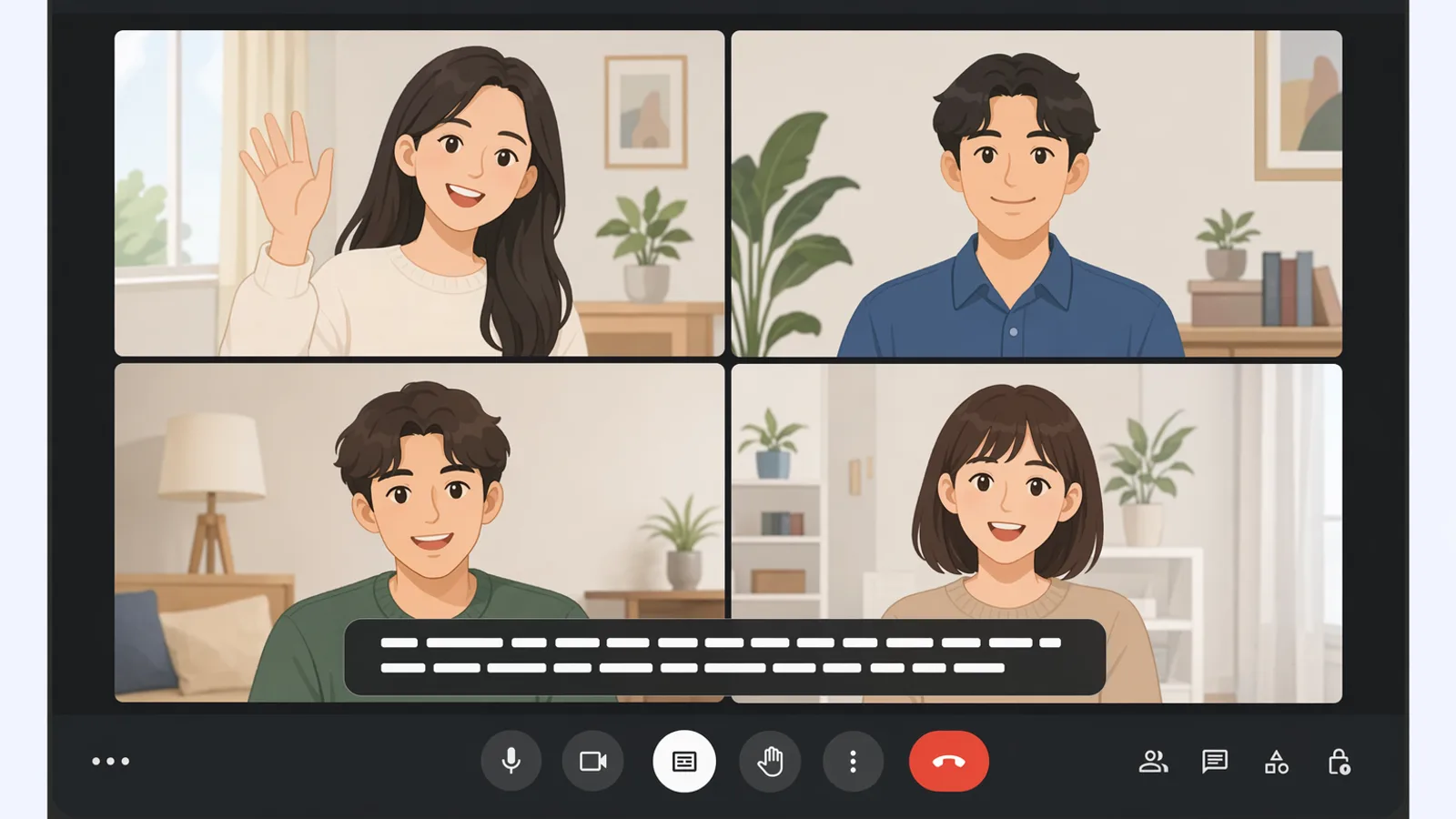
Join a Google Meet call, click Turn on captions, and pick a language if the option appears.
The feature converts speech to on-screen text in real time. It's useful when audio is faint, there's background noise, the speaker is fast, or you simply want to follow along more carefully.
What are Google Meet captions?
Captions are text generated directly from what's being said during a Google Meet call. The system recognizes the speech and prints it on screen almost instantly.
Standard captions: display speech as text in the same language being spoken.
Translated captions: display the same speech translated into a different target language (requires a paid add-on as of 2025).
Two things many people get wrong:
Captions are personal: when you turn them on, only your screen shows captions. Other participants are unaffected — if they want captions too, they have to turn them on themselves.
Captions aren't saved with the recording: if you record the meeting or use the native transcript feature, the live caption text is not saved alongside the recording. For a saved record, use AI meeting notes tools or Google's official Transcript feature.
Turn on captions in 60 seconds
Open Google Meet and join the meeting.
Find Turn on captions (or CC / Captions) in the bottom toolbar.
Click it to enable captions.
If the system offers a Language picker, choose the language matching the speaker.
Wait a few seconds — captions will appear as soon as someone speaks.
The exact button label may vary by UI language and platform.
Practical tip: before opening the three-dot menu, scan the bottom toolbar carefully. Many of the newer Google Meet UIs put captions right there for one-click access.
Standard captions vs translated captions: what's the difference?
Feature | What it shows | Best for |
|---|---|---|
Standard captions | Speech rendered as text in the same language | Online meetings, learning, noisy rooms |
Translated captions | Speech translated into a different language | Multilingual meetings, international classes |
The common mistake: turning on captions does not mean Google Meet will auto-translate.
If the speaker uses English, standard captions show English. To see, say, Spanish or Vietnamese, you need to enable translated captions — and your account must support it.
How to turn on captions on a computer
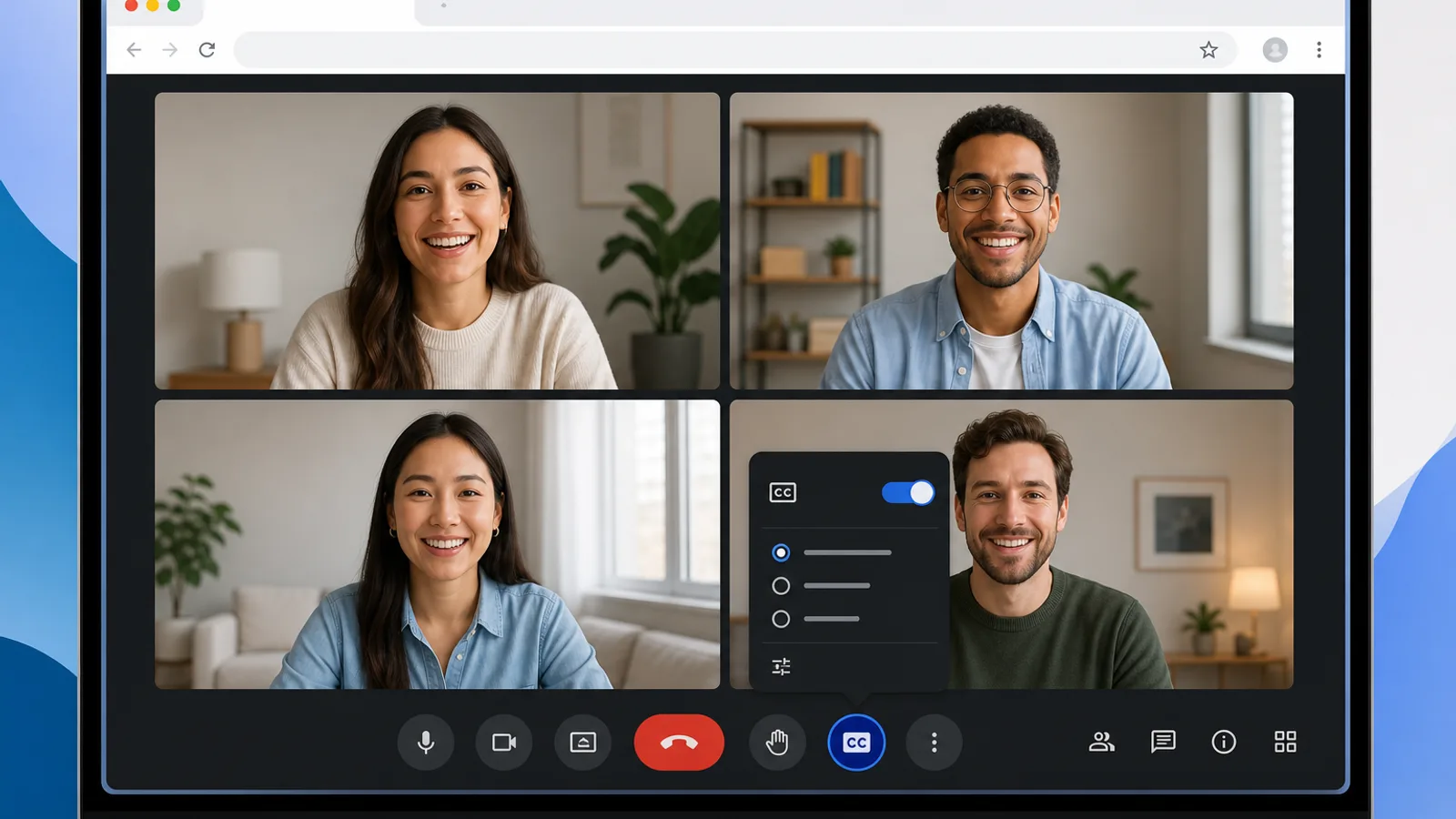
This is the most common scenario since most people join Google Meet from Chrome or another compatible browser. To turn on captions on a computer, do it directly inside the meeting window.
Step-by-step on desktop
You can enable captions in a few clicks during the meeting.
Open Google Meet in Chrome or a compatible browser.
Join the meeting as you normally would.
Look for the Turn on captions / CC button in the bottom toolbar.
If it's not visible, click the three-dot menu for more options.
Choose Captions or Turn on captions.
If there's a Language option, set it to whatever the speaker is using.
Wait until someone speaks — captions appear at the bottom of the meeting window.
That's the fastest way to enable captions in Google Meet on desktop.
Keyboard shortcut tip: on Windows, press C during a Google Meet call to toggle captions on or off without opening any menu. On macOS, the equivalent is ⌘ + Shift + C. This is the fastest way if you're flipping captions on and off during a long call. The shortcut only works when the Google Meet tab is in focus.
Real-world note: in newer UIs, the captions button moves around. Sometimes it's on the bottom bar, sometimes you have to open the overflow menu to find it.
Turn off captions on desktop
Two quick ways to disable captions:
Click the highlighted Turn off captions button.
Open the three-dot menu and toggle Captions off if your UI moved the control there.
Tip: if captions are covering a slide or a whiteboard, switch them off temporarily and re-enable when you need them again.
How to switch captions to a specific language on desktop
People often search for how to set Google Meet captions in Spanish or any other language. The standard flow:
Join the Google Meet call.
Click three dots → Settings.
Open the Captions tab.
Find the Language dropdown.
Pick your desired language (e.g., Spanish, Vietnamese, Mandarin).
Save or close the settings panel if your UI requires it.
Important notes:
The available language list isn't the same on every account.
Availability changes by update, region, and account type.
If a language is missing, update your browser, check the Google account language setting, and rejoin the meeting.
What to do when the UI changes
The Captions button can move after Google Meet UI updates.
Look for the feature name: Captions, CC, Turn on captions.
If it's not on the toolbar, check the three-dot menu first.
Don't rely on screenshots from old tutorials — the current UI looks quite different.
How to turn on captions on Android and iPhone
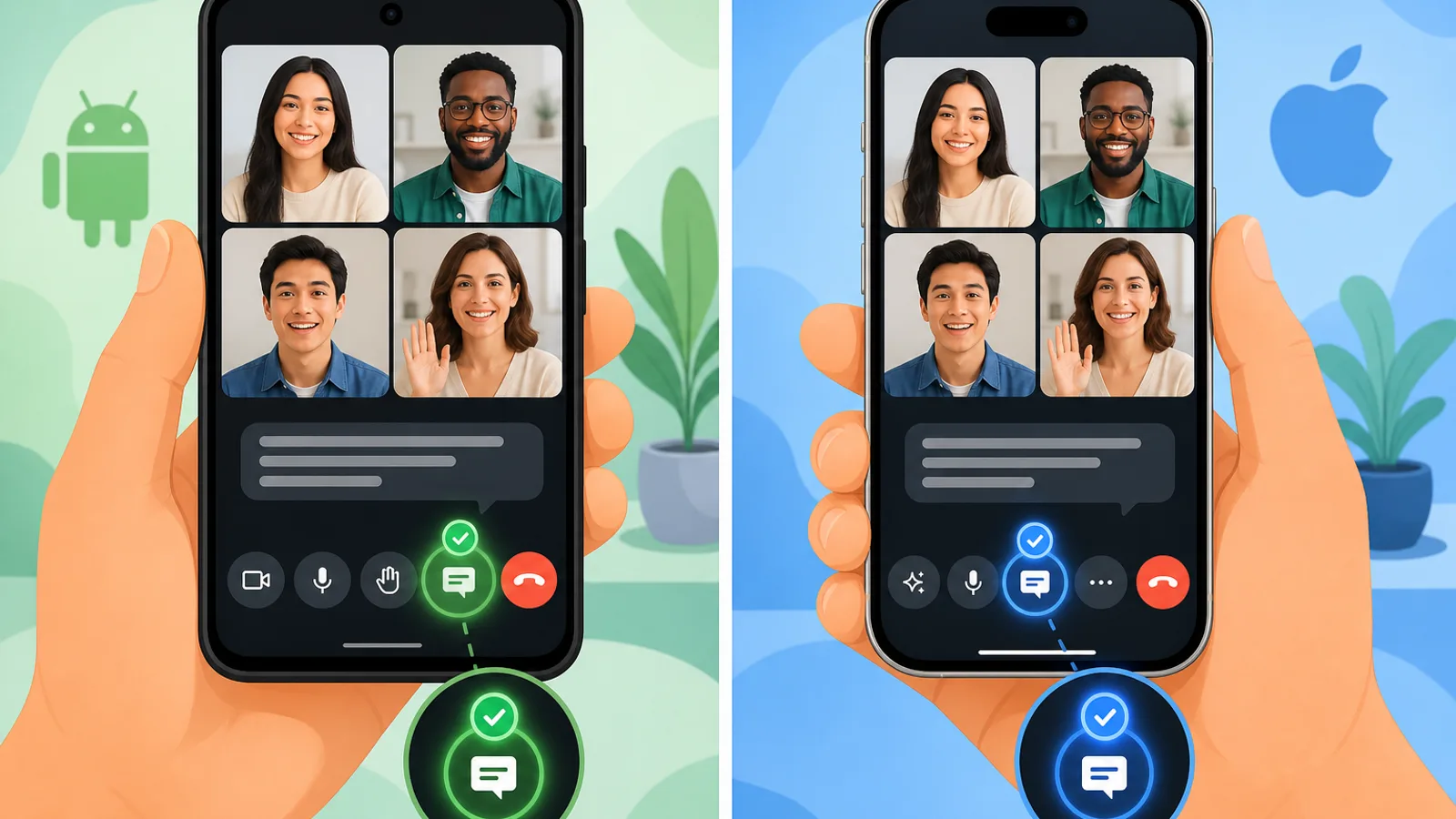
On mobile, the control lives in the three-dot menu, and the steps are nearly identical between Android and iPhone.
Step-by-step on Android and iPhone
From inside the meeting, tap three dots → Show captions.
Open the Google Meet app.
Join the meeting.
Tap the three-dot icon in the meeting controls.
Choose Show captions (or Turn on captions).
Wait for someone to speak — captions appear on screen.
If a Language option is shown, pick the one that matches the speaker.
The flow is almost identical on Android and iPhone, though menu labels vary slightly between app versions.
Turn off captions on mobile
Inside the meeting, tap the three-dot menu.
Choose Hide captions, Turn off captions, or the equivalent.
If the menu label changed, find the captions item and toggle it off.
If you don't see Show captions on mobile
Run through this checklist:
Have you actually joined the meeting? Many people search for the button on the lobby screen and miss it.
Is the Google Meet app on the latest version?
Is the connection too weak for the UI to load all controls?
Is your app or account language causing a different UI?
Is the app glitching and in need of a quick restart?
Quick fixes:
Leave and rejoin the meeting.
Update the app from the App Store or Google Play.
Force-quit the app and reopen.
Switch to a stronger network if you're on weak 4G or 5G.
Mobile caption tips
Rotate to landscape when watching lectures or screen shares.
Mute floating notifications so they don't cover captions.
Use headphones for clearer audio — it makes it easier to verify what captions show.
Pick a quieter spot if you're attending the meeting on the move.
These help especially during online classes, meetings on the go, or when you need captions as an accessibility aid.
How to change the caption language in Google Meet
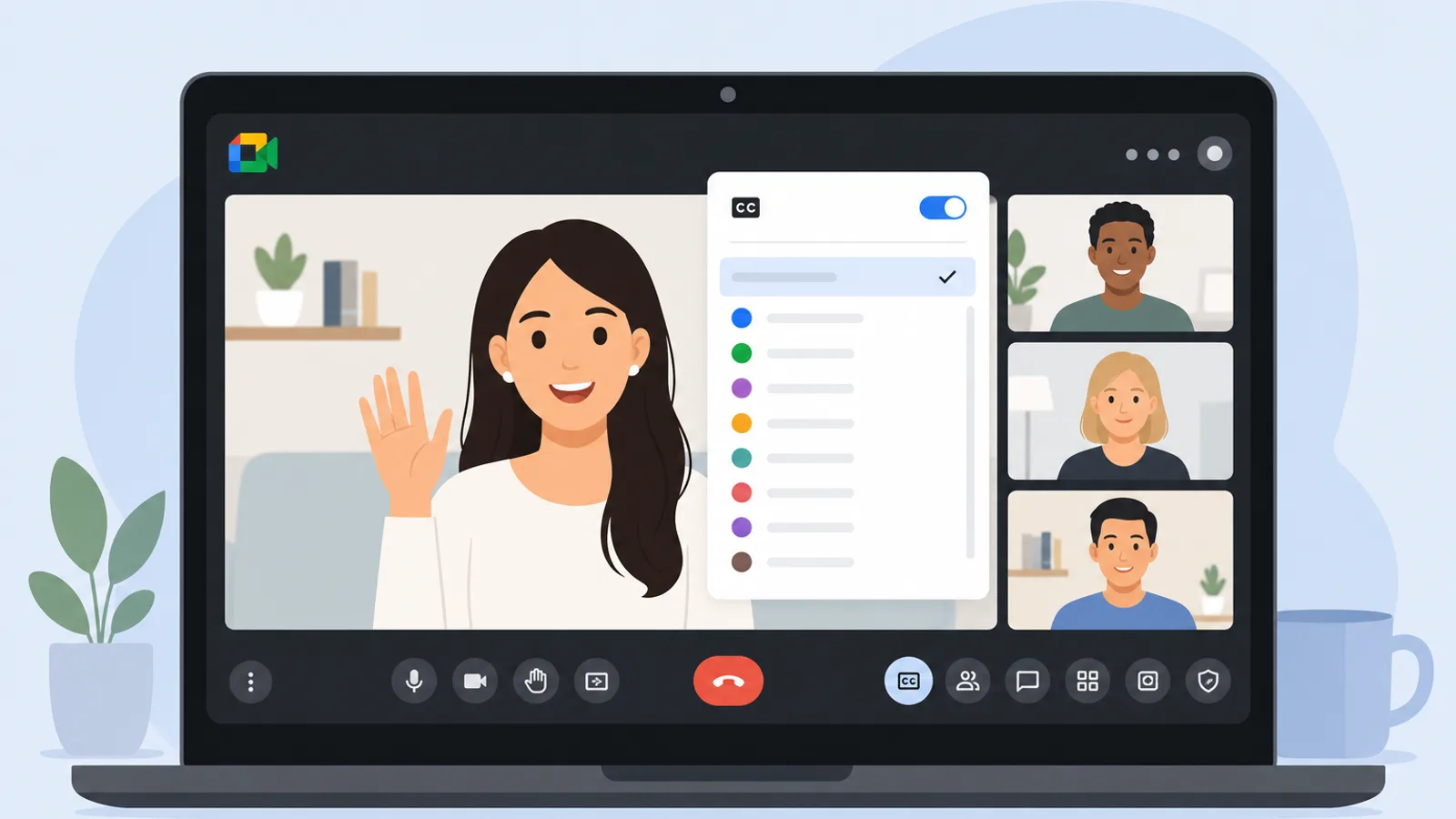
Setting the right language dramatically improves caption accuracy. If the speaker is using English but you have the language set to Spanish, recognition collapses.
Change caption language on desktop
Join the Google Meet call.
Click More options (three dots).
Choose Settings.
Open the Captions tab.
Find the Language field.
Pick the language used most in the meeting.
Close the settings and verify captions update.
Practical tip: if the meeting will run mostly in one language, set it correctly at the start so captions stay consistent.
How many languages does Google Meet caption?
Per Google's official documentation, Google Meet supports live captions in 103 languages (many still labeled beta). Common languages used by global teams include:
English — US, UK, Australia, India variants
Spanish — Spain, Latin America
French, German, Italian, Portuguese
Japanese, Korean, Mandarin (simplified and traditional)
Vietnamese, Thai, Indonesian, Filipino
Arabic, Hindi, Bengali, Russian, Turkish
Note: the list of supported translated caption languages is shorter — 69 languages currently, supporting 4,600+ language pairs. Translated captions are also gated behind a paid Gemini add-on (more on that below).
Change caption language on mobile
Join the meeting in the Google Meet app.
Tap the three-dot menu → Settings if the option is available.
Find Captions or Language.
Pick the language and return to the meeting.
Note: this option varies by app version and device — not every phone shows the same UI.
When to switch caption language
When meeting with clients or coworkers in a different language.
When learning a foreign language and following speech closely.
When taking detailed meeting notes that depend on accuracy.
When the speaker switches languages mid-meeting.
Practical tip: check the caption language in the first minute of the call. Don't wait until captions look garbled.
If captions are in the wrong language
You may have picked the wrong Language.
The speaker may be switching languages frequently.
Heavy regional accents can hurt recognition.
Noisy audio or a poor mic increases the error rate.
Quick summary: auto-captions are great, but they're not 100% accurate.
How to turn on translated captions in Google Meet
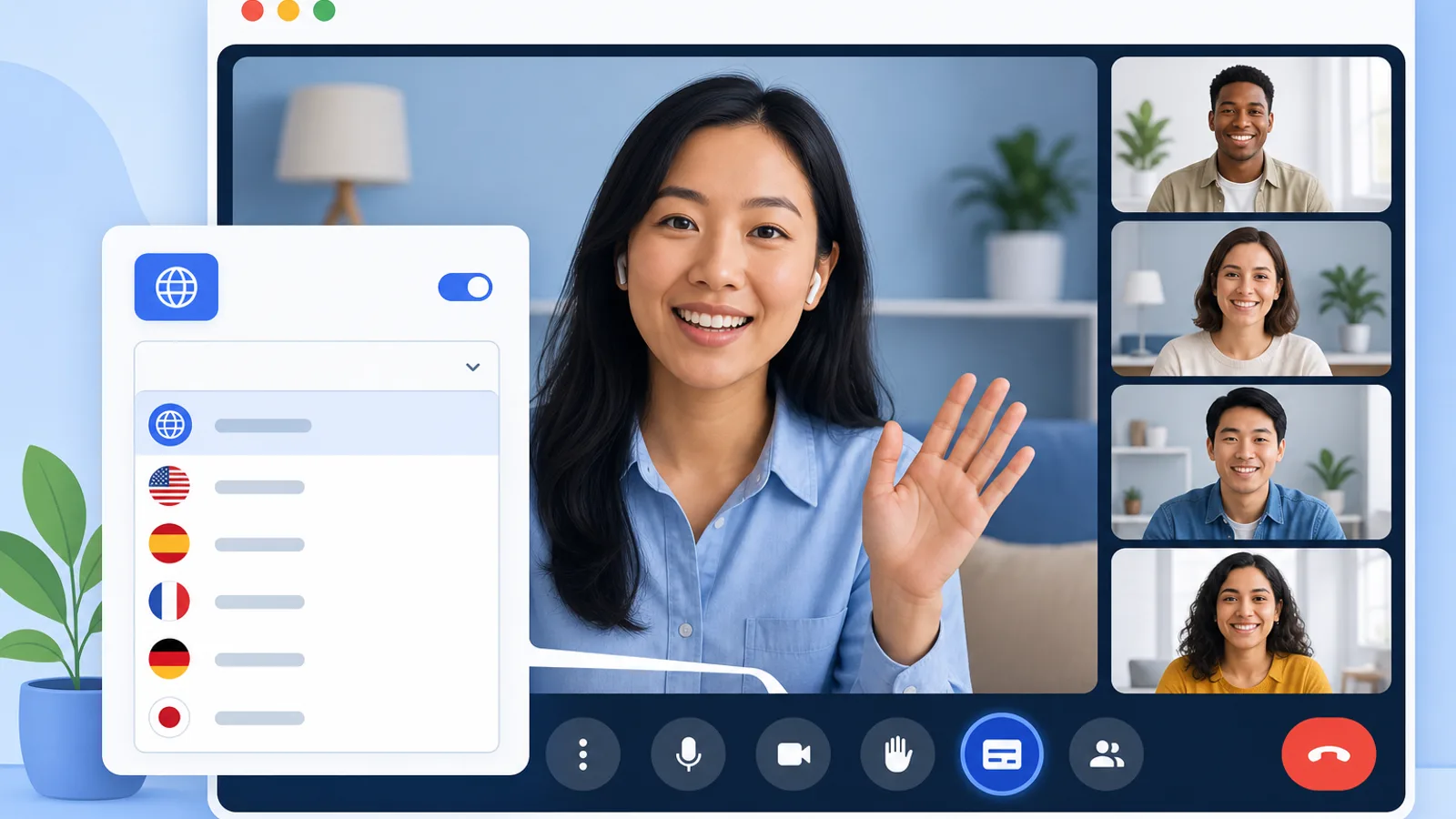
Translated captions is a separate feature — turning on captions does not automatically translate them.
This is the most common confusion. You may have enabled captions successfully but still not see Spanish, Vietnamese, or your target language because your account doesn't include translation.
Translated captions vs standard captions
Standard captions: render speech as text in the same language.
Translated captions: render speech translated into a different language.
Real-world use: multinational meetings, international classrooms, watching content in a foreign language when listening can't keep up.
If you just want to follow along in the original language, standard captions are enough. If you need the gist in a different language, switch to translated captions.
Step-by-step: enable translated captions
Join the Google Meet call.
Click More options (three dots).
Choose Settings.
Open the Captions tab.
Set Meeting language (source) to what's being spoken.
Toggle on Translated captions.
Pick the target language you want to read (e.g., English, Spanish, Vietnamese).
Return to the meeting and verify when someone speaks.
Important tip: for technical content, listen and read at the same time. Auto-translated captions often misrender domain-specific terms.
Requirements for translated captions in 2026
This is the big change you need to know about.
As of January 22, 2025, translated captions in Google Meet are no longer included in every Workspace plan. They now require one of the paid Gemini for Google Workspace add-ons:
Gemini Enterprise
AI Meetings and Messaging
Gemini Education (or Gemini Education Premium)
If you don't have one of those add-ons, you'll still get standard captions in 103 languages, but the translation toggle won't appear in your settings. Other practical factors:
Plan tier: Business and Enterprise plans without the Gemini add-on are excluded.
Device and platform: desktop typically has more options than mobile.
Region and rollout: translated captions rolled out fastest in North America and Europe; Asia-Pacific (including Vietnam) has been expanding gradually. If you're in APAC and don't see the toggle, the cause may be account tier rather than region.
Language pairs: 69 source languages × multiple target languages = 4,600+ pairs, but not every pair is supported equally.
Plain-English summary: translated captions are now a premium feature tied to Gemini for Workspace. Standard captions remain free for every account.
When to use translated captions — and when not to
Use translated captions when:
You're meeting with someone who speaks a different language.
You need the gist of an international class quickly.
You want to follow content in a language you're still learning.
Don't rely entirely on translation when:
The meeting is legal, financial, or technical in nature.
There are lots of numbers, proper names, product codes, or jargon.
The speaker talks fast or uses heavy regional accents.
For teams that run multilingual meetings often, consider an AI meeting note taker with built-in translation and post-meeting summaries, which tends to be more accurate on jargon than live captions.
Google Meet captions not showing — what to check
If Google Meet captions aren't appearing, verify you've joined the meeting properly, your app or browser is up to date, and the language is set correctly.
Quick check: 5 common causes
You haven't entered the actual meeting view yet.
Your app or browser is out of date.
Your account doesn't include translated captions (Gemini add-on required).
The language isn't supported or is set incorrectly.
Audio input is too poor for caption recognition.
Work through these top to bottom — it saves time.
You haven't joined the meeting view
On the lobby screen, Google Meet doesn't show every control yet. That's why people think the captions button is missing.
Fix:
Enter the actual meeting room first, then look for Captions on the toolbar or under the three-dot menu.
App or browser is out of date
Old builds frequently miss new features or show a UI that lacks the captions option.
Quick checklist:
Update the Google Meet app on your phone.
Update Chrome or whichever browser you're using.
Refresh the meeting tab.
Sign out and sign back in if the UI still looks off.
Real-world note: "captions not showing" is most common on outdated apps right after Google rolls out a UI change.
Your account doesn't have translated captions
Separate two things clearly:
Captions = standard live captions (free in all Workspace and personal plans).
Translated captions = the translation add-on (paid Gemini for Workspace required since 2025-01-22).
Not seeing translated captions doesn't mean standard captions are broken. It usually means the Gemini add-on isn't active on your account.
If your organization actually needs translation, talk to your Workspace admin about adding AI Meetings and Messaging or Gemini Enterprise.
Language is unsupported or wrong
Reopen the Language setting and pick the language the speaker is actually using.
If recognition is poor, try a more widely supported language variant (e.g., English (US) instead of English (Australia)).
Don't leave it set to Vietnamese if 90% of the meeting is in English.
Very common scenario: speaker uses English but the user has Vietnamese selected — captions come out almost completely wrong.
Audio input is poor
This is the cause I see most often in real meetings.
The mic is distorted or too far away.
There's heavy background noise.
People are talking over each other.
Input volume is too low.
Quick fixes:
Use a headset mic when you're speaking.
Mute when you're not speaking to lower overall noise.
Find a quieter spot.
Ask the speaker to use a clean mic and speak in short, clear sentences.
Tips to use Google Meet captions more effectively
When to turn on captions
When you're in a noisy environment or the audio connection is unstable.
When you're attending an online class and need to stay locked on the speaker.
When you're hard of hearing or need accessibility support.
When the meeting is multilingual.
It's helpful for both general users and people who rely on accessibility features.
How to use captions to follow content better
Combine listening + reading instead of relying on captions alone.
Jot down key points as captions appear.
Check the language at the very start of the meeting.
For long meetings, focus on keywords and decisions rather than reading every word.
Don't trust captions blindly
Captions often get proper names wrong.
Captions often misrender numbers.
Captions struggle with technical jargon.
Errors increase with fast speakers or weak mics.
For important meetings, treat captions as a support tool — not the source of truth.
Customize Google Meet captions
This isn't required to enable captions, but it's a lifesaver if you read for long stretches or use a small screen.
What you can customize on desktop
Font — choose an easier-to-read typeface.
Text size — increase for better visibility.
Text color — boost contrast.
Background color — reduce glare or make captions pop.
The point is to reduce eye fatigue and let you follow the conversation more comfortably.
Customization options and when to use them
Setting | Effect | Best for |
|---|---|---|
Font | Easier-to-read typeface | Long meetings, heavy reading |
Text size | Improves visibility | Small screens, sitting far from the display |
Text color | Adds emphasis | Bright or colorful slide backgrounds |
Background color | Improves contrast | Eye fatigue, brightly lit rooms |
When to tweak caption styling
When you're on a small or low-resolution display.
When the meeting runs long and your eyes get tired.
When the deck has bright backgrounds making captions hard to read.
When you need accessibility support to follow content more clearly.
Are Google Meet captions right for you?
Use standard captions if you...
Just want to read along when audio isn't clear.
Take online classes and want faster note-taking.
Attend meetings in noisy environments.
Need a hearing aid but already understand the meeting's language.
Use translated captions if you...
Join international meetings.
Take classes in a language you're learning.
Need the gist quickly without strong language fluency.
Need to follow multilingual content efficiently.
Don't rely on captions alone if you...
Handle legal content needing high precision.
Work on financial content with lots of numbers.
Discuss technical content with heavy jargon.
Bottom line: captions are an excellent support tool but not a replacement for verifying important information.
Turning on captions in Google Meet is fast once you know where the button is and how to pick the right language. If the feature is missing, check the meeting view, update your app or browser, and confirm whether your account includes translated captions (now a paid Gemini add-on since 2025). Try these steps in your next meeting, and pair captions with the Google Meet transcript feature if you want a permanent text record, or an AI meeting notes tool for full post-meeting summaries.
Frequently Asked Questions
How do I turn on Google Meet captions on my phone?
To turn on Google Meet captions on a phone, join the meeting, tap the three-dot icon in the meeting controls, then choose Show captions. If you don't see the option, make sure you're in the actual meeting (not the lobby) and that the Google Meet app is updated to the latest version.
Where is the captions button on a computer?
The captions button (Turn on captions or CC) usually sits on the bottom toolbar of the Google Meet window. If it's missing, open the More options menu (three dots) and select Captions. On Windows you can also press C; on macOS press ⌘ + Shift + C.
Does Google Meet support captions in my language?
Google Meet supports live captions in 103 languages, including English, Spanish, Vietnamese, Japanese, Korean, Mandarin, Arabic, Hindi, and many more. Many are still in beta. Open Settings → Captions → Language to confirm your language appears and pick the variant that matches the speaker.
Why do I see captions but no option to translate them?
Translated captions are a separate feature and, as of January 22, 2025, require a Gemini for Google Workspace add-on (Gemini Enterprise, AI Meetings and Messaging, or Gemini Education). If you only see standard captions and no translation toggle, your account likely doesn't include the add-on. Standard captions remain free for all accounts.
What should I check first when Google Meet captions don't show?
Check, in order: 1) you've joined the meeting (not the lobby), 2) your Google Meet app or browser is up to date, 3) the caption language matches the speaker, 4) audio input is clear, 5) for translated captions, your account has a Gemini for Workspace add-on. Re-join the meeting if the UI looks incomplete.
Can I turn captions off after enabling them?
Yes. On a desktop, click the highlighted Turn off captions button, use the C shortcut on Windows or ⌘ + Shift + C on macOS, or toggle captions off from the three-dot menu. On mobile, tap the three-dot menu and choose Hide captions.
Can I change the size or color of Google Meet captions?
Yes — on desktop. Go to Settings → Captions to adjust the font, text size, text color, and background color. These options aren't available on mobile, but you can still rotate to landscape for more screen room.